Console Wizard is how console players access Coach Dave Academy’s professional ACC setups. While Delta’s automatic setup installation is only available on PC, Console Wizard gives you the exact same setups – you just enter the values manually in your garage.
This guide walks you through how to find, read, and apply setups using Console Wizard.
What is Console Wizard?
Console Wizard is a web-based tool on the Coach Dave Academy website that displays our full library of ACC setups as readable values. Instead of downloading a file, you view the setup on screen and manually input each value into your car’s garage setup screen in ACC on console and save it.
The setups are identical to what PC players get through Delta. Same cars, same tracks, same values – the only difference is how you apply them.
You do need an active Delta subscription to access Console Wizard.
How to Access Console Wizard
- Go to coachdaveacademy.com and log in to your account.
- Once logged in, you’ll find Console Wizard in the top header bar of the website.
- Click it to open the Console Wizard dashboard.
Choosing Your Car
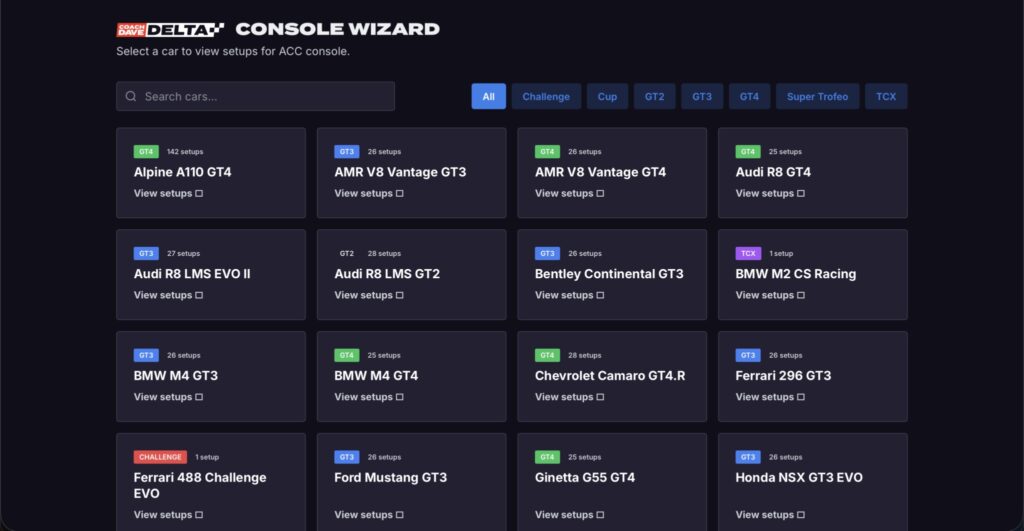
When you open Console Wizard, you’ll see every ACC car listed in alphabetical order. Each car is colour-coded by class – GT3, GT4, and GT2 – so you can quickly identify which class you’re looking for.
You can also filter by class using the buttons at the top of the page to narrow the list down.
Choosing Your Track
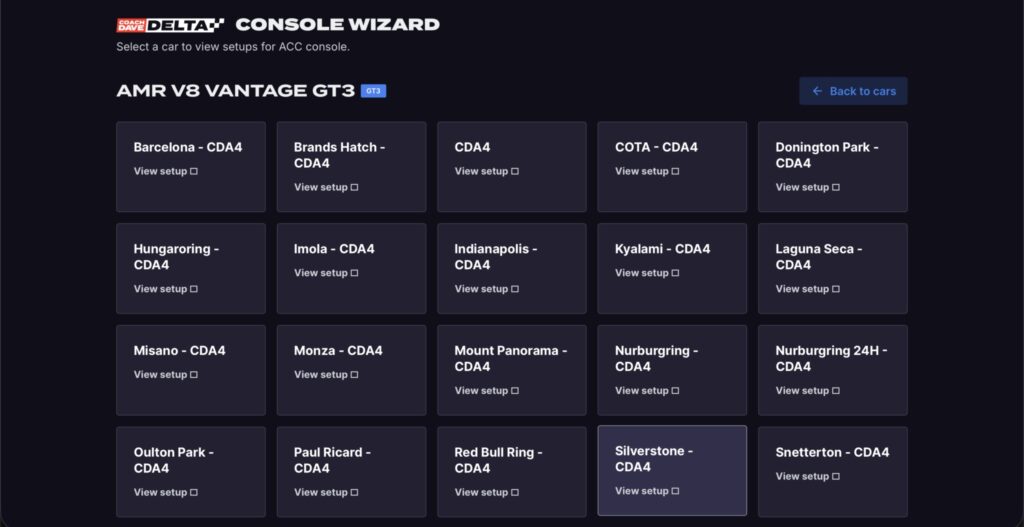
Click on any car and you’ll see a list of all 26 ACC tracks in alphabetical order. Every track is covered, and all setups are compatible with the latest version of ACC on console.
Select the track you want to load a setup for.
Reading and Applying the Setup
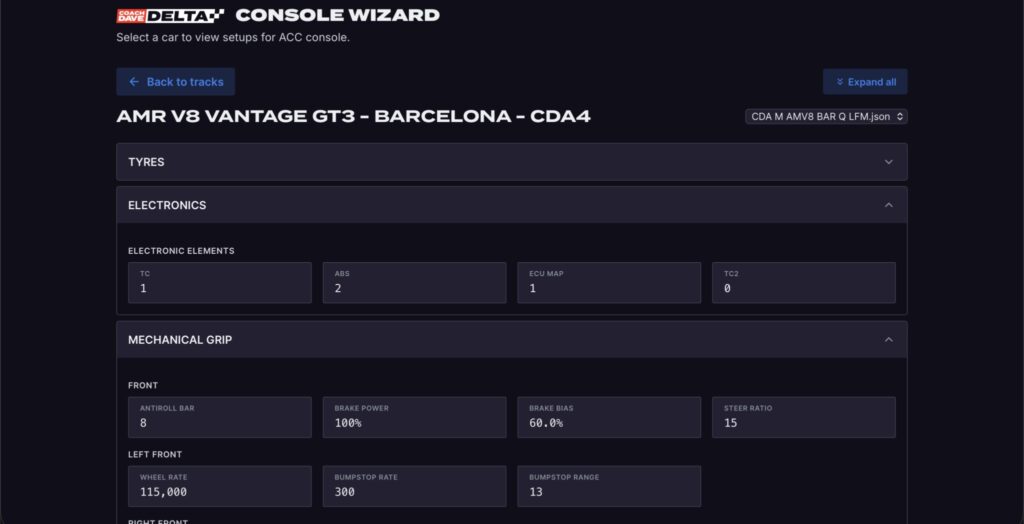
Once you’ve selected a car and track, you’ll see the full setup values displayed on screen. These are the exact values you need to enter into your garage setup in ACC.
*Wet setups for Console Wizard are under a base CDA4 heading for each specific car.
To apply the setup:
- Open Console Wizard on a phone, tablet, or second screen so you can read it while in-game.
- Load into ACC on your console and enter the garage for your chosen car and track.
- Go through each setup parameter in the garage and manually enter the values shown in Console Wizard one by one.
- Save the setup in your garage once all values are entered.
Take your time with this process. It’s worth double-checking each value as you go – one incorrect entry can change how the car handles.
Important Notes for Console Players
Setups are the same as PC. Console Wizard gives you the exact same setup values that PC players receive through Delta. There is no difference in quality or content.
No automatic tyre pressure adjustment. On PC, Delta automatically adjusts tyre pressures for the current track conditions. Console Wizard cannot do this. The tyre pressure values shown are a baseline and you may need to adjust them slightly depending on the ambient and track temperature in your session. As a general rule, if your pressures are reading above 27.7 PSI after a few laps, lower the starting pressure slightly. If they’re below 27.0 PSI, raise them.
No automatic installation. There is currently no way to automatically install setups on ACC console. Console Wizard is the best available alternative – manual input of professional setup values.
Use a second screen. Having Console Wizard open on your tablet or second screen while you’re in the garage makes the process much faster than switching back and forth on a single screen.